

Setting up navigation in react native web is challenging as the navigation system works quite differently in apps vs browser.
“React Native for Web” makes it possible to run React Native components and APIs on the web using React DOM. It is as simple as that!! So, if you have an app and you want to build a web version of it, or if you are planning to build a website along with an app, you should definitely learn React native web.
Setting up navigation in react native web is challenging as the navigation system works quite differently in apps vs browsers.
In this article, we’ll set up the most popular react-navigation on react-native-web.
Key Summary
This article provides a detailed guide on integrating react-navigation into a React Native Web application using Expo, enabling seamless navigation across mobile (iOS/Android) and web platforms. It addresses the challenge of differing navigation systems between apps and browsers, ensuring URL updates reflect screen changes on the web. Key points include:
- Overview: React Native for Web allows running React Native components on the web via React DOM, ideal for building web versions of apps or simultaneous app/website development. react-navigation is the leading navigation library for React Native, adaptable for web with additional configuration.
- React Native for Web allows running React Native components on the web via React DOM, ideal for building web versions of apps or simultaneous app/website development.
- react-navigation is the leading navigation library for React Native, adaptable for web with additional configuration.
- Prerequisites: Use Expo as the development platform. Install expo-cli and clone the provided GitHub repository (master branch) or use the react-navigation-setup branch for quick setup. Run expo start to initialize the project.
- Use Expo as the development platform.
- Install expo-cli and clone the provided GitHub repository (master branch) or use the react-navigation-setup branch for quick setup.
- Run expo start to initialize the project.
- Installation:
- npm i react-navigation-stack @react-navigation/web
- Ensure react-navigation version is 4+ in package.json.
- Expo ensures compatibility with the installed Expo version, using npm internally.
- Setup Screens and Navigation: Create Screens: Feed Screen: Displays text and a button to navigate to the Profile screen. Profile Screen: Similar to Feed, with a button to navigate to Feed. Both use StyleSheet for centered layout and Button for navigation via this.props.navigation.navigate. Stack Navigation (Home.js): Use createStackNavigator to connect Feed and Profile screens. Set Profile as the default screen (first in the navigator object). Configure navigationOptions for header styling (e.g., black background, white text). Use createAppContainer to wrap the navigator. App.js: Render the Home navigator within a styled View.
- Create Screens: Feed Screen: Displays text and a button to navigate to the Profile screen. Profile Screen: Similar to Feed, with a button to navigate to Feed. Both use StyleSheet for centered layout and Button for navigation via this.props.navigation.navigate.
- Feed Screen: Displays text and a button to navigate to the Profile screen.
- Profile Screen: Similar to Feed, with a button to navigate to Feed.
- Both use StyleSheet for centered layout and Button for navigation via this.props.navigation.navigate.
- Stack Navigation (Home.js): Use createStackNavigator to connect Feed and Profile screens. Set Profile as the default screen (first in the navigator object). Configure navigationOptions for header styling (e.g., black background, white text). Use createAppContainer to wrap the navigator.
- Use createStackNavigator to connect Feed and Profile screens.
- Set Profile as the default screen (first in the navigator object).
- Configure navigationOptions for header styling (e.g., black background, white text).
- Use createAppContainer to wrap the navigator.
- App.js: Render the Home navigator within a styled View.
- Render the Home navigator within a styled View.
- Running the App: Launch with expo start. Press i for iOS simulator (displays Profile screen; button navigates to Feed). Press w for web browser (same functionality, but URL updates need further configuration).
- Launch with expo start.
- Press i for iOS simulator (displays Profile screen; button navigates to Feed).
- Press w for web browser (same functionality, but URL updates need further configuration).
- Web-Specific Navigation: Issue: Default setup doesn’t update browser URLs when navigating (e.g., clicking “Go to Feed” doesn’t change URL). Solution: Add static path to screens: Feed: static path = “feed”; Profile: static path = “”; (default route). Direct URL access (e.g., http://localhost:19006/feed) renders the Feed screen.
- Issue: Default setup doesn’t update browser URLs when navigating (e.g., clicking “Go to Feed” doesn’t change URL).
- Solution: Add static path to screens: Feed: static path = “feed”; Profile: static path = “”; (default route). Direct URL access (e.g., http://localhost:19006/feed) renders the Feed screen.
- Add static path to screens: Feed: static path = “feed”; Profile: static path = “”; (default route).
- Feed: static path = “feed”;
- Profile: static path = “”; (default route).
- Direct URL access (e.g., http://localhost:19006/feed) renders the Feed screen.
const isWeb = Platform.OS === ‘web’;
// Conditionally render
- !isWeb ? <Button … /> : <Link routeName=“Profile”>Go Profile</Link>
- const container = isWeb ? createBrowserApp(Home) : createAppContainer(Home);
- Result: Clicking navigation buttons updates URLs (e.g., http://localhost:19006/feed), and direct URL entry works.
- Additional Features: Add navigationOptions with title (e.g., title: “Feed”) to display screen titles in the header. The Link module converts to tags on the web, enhancing browser compatibility. Platform.OS ensures platform-specific rendering (Button for apps, Link for web).
- Add navigationOptions with title (e.g., title: “Feed”) to display screen titles in the header.
- The Link module converts to tags on the web, enhancing browser compatibility.
- Platform.OS ensures platform-specific rendering (Button for apps, Link for web).
- Conclusion: Setting up react-navigation for React Native Web is straightforward with proper configuration. Key steps include installing compatible packages, creating screens/navigators, and enabling web-specific URL handling with Link and createBrowserApp. InApps Technology offers support for any implementation queries.
- Setting up react-navigation for React Native Web is straightforward with proper configuration.
- Key steps include installing compatible packages, creating screens/navigators, and enabling web-specific URL handling with Link and createBrowserApp.
- InApps Technology offers support for any implementation queries.
- FAQs: Navigation in React Native Web: Install react-navigation and related packages, ensuring version 4+. Using React Navigation in React JS: Feasible with JavaScript, React, and React Native knowledge. Navigation in React JS: React-router-dom’s Link creates anchor tags for navigation without page reloads, unlike HTML anchors.
- Navigation in React Native Web: Install react-navigation and related packages, ensuring version 4+.
- Using React Navigation in React JS: Feasible with JavaScript, React, and React Native knowledge.
- Navigation in React JS: React-router-dom’s Link creates anchor tags for navigation without page reloads, unlike HTML anchors.
- InApps Insight: React Native Web with react-navigation enables cross-platform development with a single codebase. This tutorial simplifies navigation setup, ensuring seamless app and web experiences. InApps Technology’s expertise can assist in building robust, navigable React Native Web applications.
- React Native Web with react-navigation enables cross-platform development with a single codebase. This tutorial simplifies navigation setup, ensuring seamless app and web experiences. InApps Technology’s expertise can assist in building robust, navigable React Native Web applications.
Using React navigation in react native web
React navigation is the most famous library for navigation in react–native. In this section, we’ll try to integrate react-navigation in react–native–web.
Prerequisite
For this setup, we’ll be using the expo as the platform on which we’ll be building our react–native app, which will run on android, ios, and the web. Make sure you have expo-cli installed it already.
To set up your codebase using expo, check this GitHub link [master branch]. Simply clone the branch and do run expo start
If you are looking for a quick code, then you can check this GitHub link [NOTE: the branch is react–navigation–setup and not master.]
Installation
Run the following command to install react–navigation along with other needed packages including react–navigation–stack.
expo install react-navigation react-native-gesture-handler react-native-reanimated react-native-screens


npm i react-navigation-stack
npm i @react-navigation/web
Check your package.json files to ensure all of the above packages are installed, make sure react–navigation is version 4+. If you are wondering, why did we use expo instead of NPM/yarn while installing react–navigation, then the reason is that expo would look for the correct version of the react–navigation libraries that’d work with the expo version that’s installed in your project.
If you look into the printed console it uses NPM underneath.

Create a few screens
Now, let’s set up a few screens to test our navigation flow:
// feed screen
import React from 'react';
import {View, Text, StyleSheet, Button, Platform} from 'react-native';
export default class Feed extends React.Component {
render() {
return
The above is the code for FeedScreen, which is a simple text, and a button. The button when clicked should go directly to the profile screen.
// Profile screen
import React from 'react';
import {View, Text, StyleSheet, Button, Platform} from 'react-native';
export default class Profile extends React.Component {
render() {
return
The Profile screen is the same as the Feed screen. Both the screens have a button which takes to the other screen.
Let’s also create stack navigation to connect these two screens together:
// Home.js, just a name of the stack navigation

import {createStackNavigator} from 'react-navigation-stack';
import {createAppContainer} from 'react-navigation';

import Feed from "../screens/Feed";
import Profile from "../screens/Profile";


const Home = createStackNavigator(
    {
        Profile: Profile,
        Feed: Feed,
    },
    {
        navigationOptions: {
            headerTintColor: '#fff',
            headerStyle: {
                backgroundColor: '#000',
            },
        },
    }
);

const container = createAppContainer(Home);

export default container;
Since the object that’s passed to CreateStackNavigator Profile comes first, the Profile screen is the default screen of this stack navigator.
Now, in the App.js file, simply render the Home Navigation.
// App.js
export default function App() {
return (
Just run the app using command expo start , and it should launch the expo bundler for you.
If you press i to launch the Expo app in the IOS simulator in the terminal, the following screen comes up on display, if everything goes well.
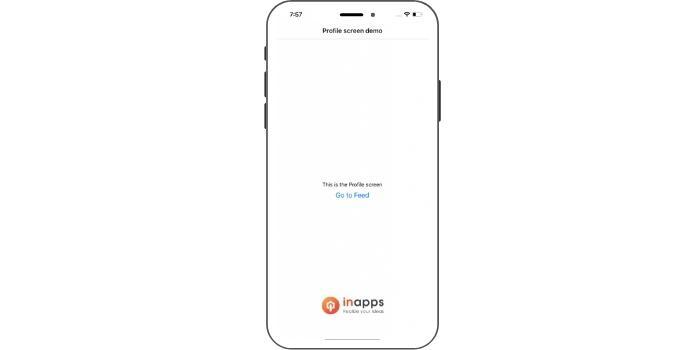
When you click on the Go to Feed button, it should take you to the feed screen. To run the same setup on to the web, simply press w in your terminal, it will launch the web app in your default browser.

The click functionality also works on the web as well. The top border is for the screen title, you can add it by adding navigationOptions to the feed and profile screen like this.
export default class Feed extends React.Component {
    static navigationOptions = {
        title: "Feed"
    }
...
But there is one problem with the web navigation, the URL doesn’t change when you go from the profile to the feed screen. In the web navigation, it is extremely important to have the change in page reflecting in the URL as well.
In the app, there is no way a user can directly jump to a screen other than the default screen, but in the browser it is possible, a user can enter a URL.
The good part of react–navigation is that it supports URL updates when the screen changes. The way navigationOptions is added inside the screen class similarly you can also add title.
export default class Feed extends React.Component {
    static navigationOptions = {
        title: "Feed"
    }

    static path = "feed";

    render() {
...
For the profile screen, you can keep the path as empty static path = "".
When you go to http://localhost:19006/feed, the web app would understand that you want to go to the feed screen and will render that for you. Try going to http://localhost:19006/feed directly, and it should render the feed page for you.
But when you click on the Go to Feed button, the URL won’t change.
There are a few other things that we need to do to make this work: @react-navigation/web also provide Link module which gets converted into a tag on to the web.
And, this module doesn’t work when you try to run the app. So, we use Platform module provided by react–native to differentiate between web and app.
// feed screen
import React from 'react';
import {View, Text, StyleSheet, Button, Platform} from 'react-native';
import {Link} from "@react-navigation/web";
const isWeb = Platform.OS === 'web';
export default class Feed extends React.Component {
static navigationOptions = {
title: "Feed"
}
static path = "feed";
render() {
return
Here, we are conditionally rendering the Link and the Button.
You need to do similar changes for the Profile screen as well. Also, in the navigation container, instead of createAppContainer you need to use createBrowserApp for the web.
Here is the code for the navigation:
// Home.js, just a name of the stack navigation

import {createStackNavigator} from 'react-navigation-stack';
import {createAppContainer} from 'react-navigation';
import {createBrowserApp} from '@react-navigation/web';

import Feed from "../screens/Feed";
import Profile from "../screens/Profile";
import {Platform} from "react-native";

const isWeb = Platform.OS === 'web';


const Home = createStackNavigator(
    {
        Profile: Profile,
        Feed: Feed,
    },
    {
        navigationOptions: {
            headerTintColor: '#fff',
            headerStyle: {
                backgroundColor: '#000',
            },
        },
    }
);

const container = isWeb ? createBrowserApp(Home): createAppContainer(Home);

export default container;
Try running the app in the browser, Go to feed button click should change the URL to http://localhost:19006/feed.
Also, the app should be running fine on the simulators as well.
In the following videos, I have done the walkthrough of the react-navigation setup on react native web.
Conclusion
We hope this tutorial has helped you in learning how to do navigation in React-native web. It’s not as difficult as you think it. Just go through the entire process once and practically implement it. Also, in case of any queries, you can contact InApps. We would love to help you.
FAQs
- What is the way to navigate in React native web? You need to install it. Then, run that command to install react-navigation along with other required packages comprising react-navigation-stack. Keep checking your package .json files to make sure all the packages are installed, and ensure react-navigation is version 4+.
- Can we use React Navigation in React JS? If you are well-versed with JavaScript, React native, and React, then you will be able to easily go ahead with React navigation swiftly.
- What is navigation in React JS? js routing. The link part which is offered by React-router-dom assists in making anchor tags that will help you navigate without re-loading that page alone. If you use the anchor tag given by HTML, it will reload the page while navigating.
Learn more: Top 12 React Dev Tools For 2022
Rate this post
Read More:
Design Thinking - Way of creating new Concepts
Related Articles

Best Countries to Outsource Software Development (2026 Guide)
Software development outsourcing means hiring an external engineering team - usually based in another country- to design, build, or maintain software on your behalf, instead of hiring in-house. Most US, UK, and Australian companies do this to access skilled engineers faster and at a lower fully-loaded cost than domestic hiring allows.

How to Hire Remote Developers Without Losing Code Quality: A 2026 Playbook for CTOs
Every CTO who hires remote developers eventually asks the same question: how do I know this is going to work before I've sunk three months and a sprint's worth of technical debt into finding out? Most guides to hiring remote developers answer a different question: which platform to use. They skip the part that actually determines whether the code that comes back is any good. This playbook covers the vetting mechanics, engagement models, and real rate data behind hiring remote engineers who ship production-quality code from week one, not another list of freelance marketplaces.

IT Managed Services vs Break-Fix IT Support: What Growing Startups Need in 2026
Break-fix IT feels free right up until the week something breaks in production and there is no one already watching for it. Here is how growing startups actually decide between break-fix support and managed services in 2026, and why the decision has gotten sharper for anyone shipping a product built quickly with AI tools.