
Serve TensorFlow Models with KServe on Google Kubernetes Engine is an article under the topic Data Science Many of you are most interested in today !!
I introduced KServe as a scalable, cloud native, open source model server in the previous article. This tutorial will walk you through all the steps required to install and configure KServe on a Google Kubernetes Engine cluster powered by Nvidia T4 GPUs. We will then deploy a TensorFlow model to perform inference.
Step 1 – Launch a GKE Cluster with T4 GPU Node
Assuming you have access to Google Cloud Platform, run the following command to launch a 3-node cluster configured to use one Nvidia T4 GPU. Replace the project, zone, and other values appropriately to reflect your environment.
gcloud beta container clusters create “tns-kserve”
–project “janakiramm-sandbox”
–zone “asia-southeast1-c”
–no-enable-basic-auth
–cluster-version “1.22.4-gke.1501″
–machine-type “n1-standard-4″
–accelerator “type=nvidia-tesla-t4,count=1″
–num-nodes “3”
–image-type “UBUNTU_CONTAINERD”
–disk-type “pd-standard”
–disk-size “100”
–scopes “https://www.googleapis.com/auth/devstorage.read_only”,”https://www.googleapis.com/auth/logging.write”,”https://www.googleapis.com/auth/monitoring”,”https://www.googleapis.com/auth/servicecontrol”,”https://www.googleapis.com/auth/service.management.readonly”,”https://www.googleapis.com/auth/trace.append”
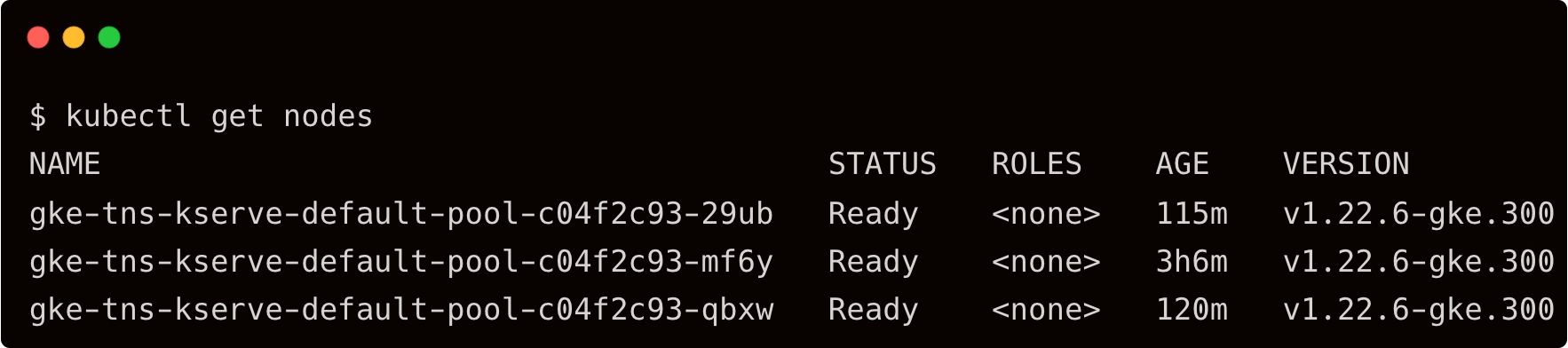
Add a cluster-admin role for the GCP user.
kubectl create clusterrolebinding cluster-admin-binding
–clusterrole=cluster-admin
–user=$(gcloud config get-value core/account)
Install the device plugin for Nvidia T4 GPU and validate that it is accessible.
kubectl apply -f https://raw.githubusercontent.com/GoogleCloudPlatform/container-engine-accelerators/master/nvidia-driver-installer/ubuntu/daemonset-preloaded.yaml
1 | kubectl apply –f https://raw.githubusercontent.com/GoogleCloudPlatform/container-engine-accelerators/master/nvidia-driver-installer/ubuntu/daemonset-preloaded.yaml
kubectl get pods -n kube-system -l k8s-app=nvidia-gpu-device-plugin
1 | kubectl get pods –n kube–system –l k8s–app=nvidia–gpu–device–plugin
Create a pod to test the access based on the Nvidia CUDA image.
apiVersion: v1
kind: Pod
metadata:
name: my-gpu-pod
spec:
containers:
– name: my-gpu-container
image: nvidia/cuda:11.0.3-runtime-ubuntu20.04
command: [“/bin/bash”, “-c”, “–“]
args: [“while true; do sleep 600; done;”]
resources:
limits:
nvidia.com/gpu: 1
kubectl apply -f gpu-pod.yaml
1 | kubectl apply –f gpu–pod.yaml
Run the command nvidia-smi to test GPU access
kubectl exec -it my-gpu-pod — nvidia-smi
1 | kubectl exec –it my–gpu–pod — nvidia–smi
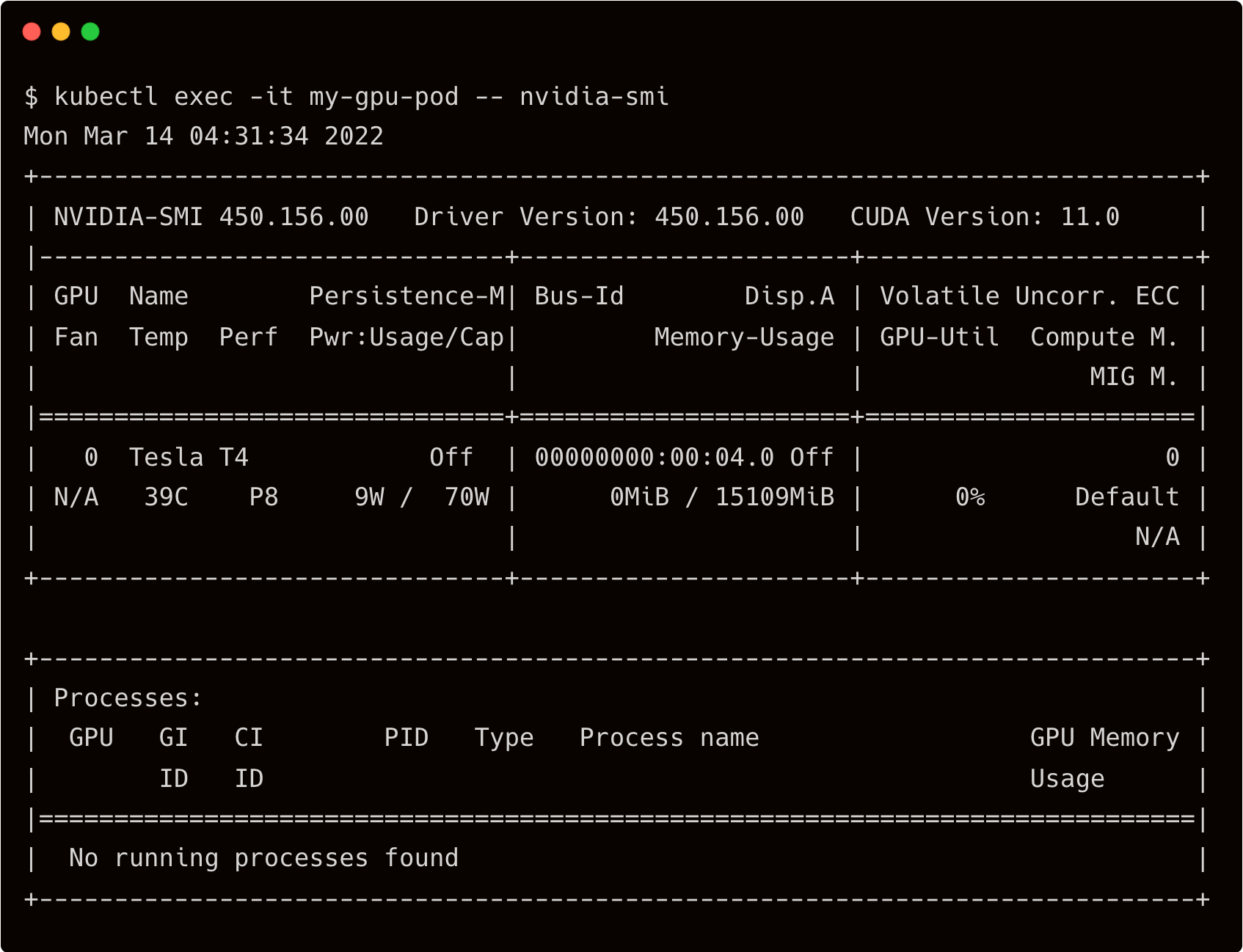
With the infrastructure in place, let’s proceed with KServe installation.
Read More:
5 DevOps Pitfalls to Watch Out for – InApps 2022
Step 2 – Installing Istio
Istio is an essential prerequisite for KServe. Knative Serving relies on Istio ingress to expose KServe API endpoints. For version compatibility, check the documentation.
Download the Istio binary and your local workstation, and run the CLI for installation.
curl -L https://istio.io/downloadIstio | sh -
istioctl install –set profile=demo -y
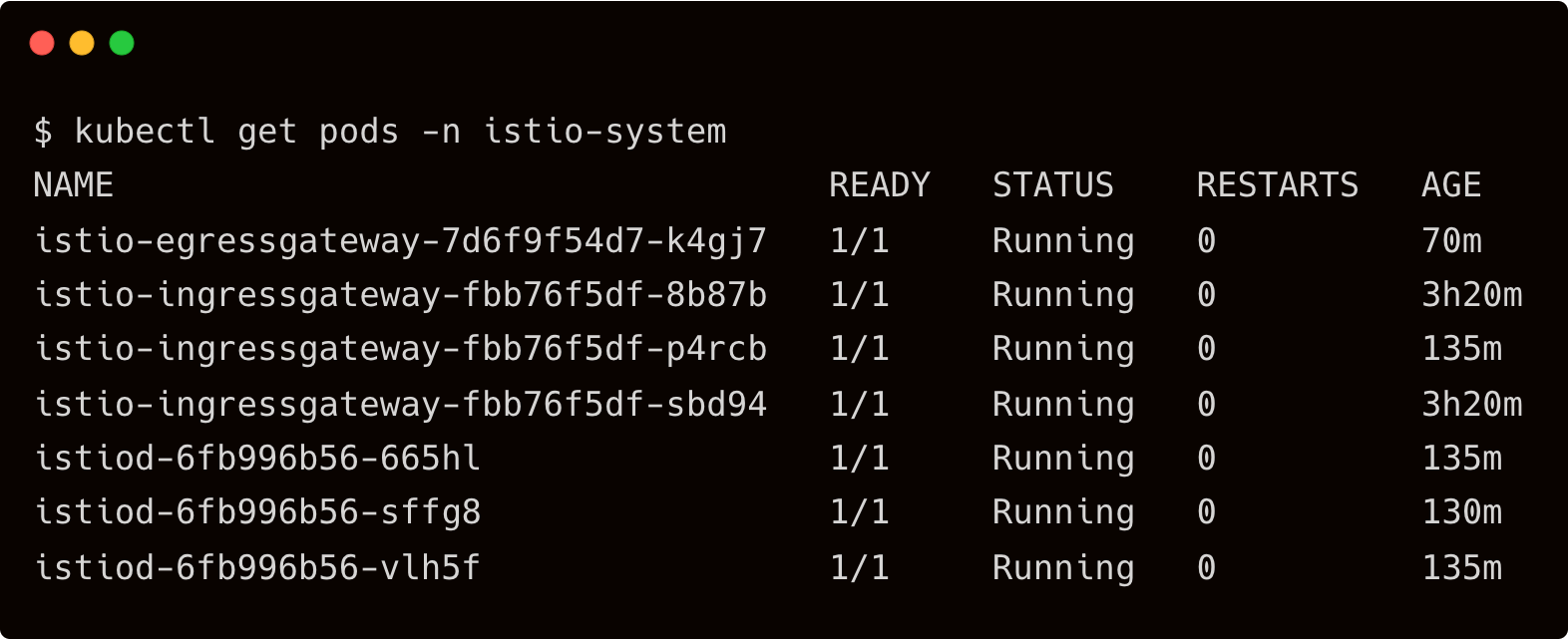
Verify that all pods are in running state in the istio-system namespace.
Step 3 – Installing Knative Serving
Install Knative CRDs and core services.
kubectl apply -f https://github.com/knative/serving/releases/download/knative-v1.2.0/serving-crds.yaml
kubectl apply -f https://github.com/knative/serving/releases/download/knative-v1.2.0/serving-core.yaml
To integrate Knative with Istio Ingress, run the below commands.
kubectl apply -l knative.dev/crd-install=true -f https://github.com/knative/net-istio/releases/download/knative-v1.2.0/istio.yaml
kubectl apply -f https://github.com/knative/net-istio/releases/download/knative-v1.2.0/istio.yaml
kubectl apply -f https://github.com/knative/net-istio/releases/download/knative-v1.2.0/net-istio.yaml
Finally, configure the DNS for Knative that points to the sslip.io domain.
kubectl apply -f https://github.com/knative/serving/releases/download/knative-v1.2.0/serving-default-domain.yaml
1 | kubectl apply –f https://github.com/knative/serving/releases/download/knative-v1.2.0/serving-default-domain.yaml
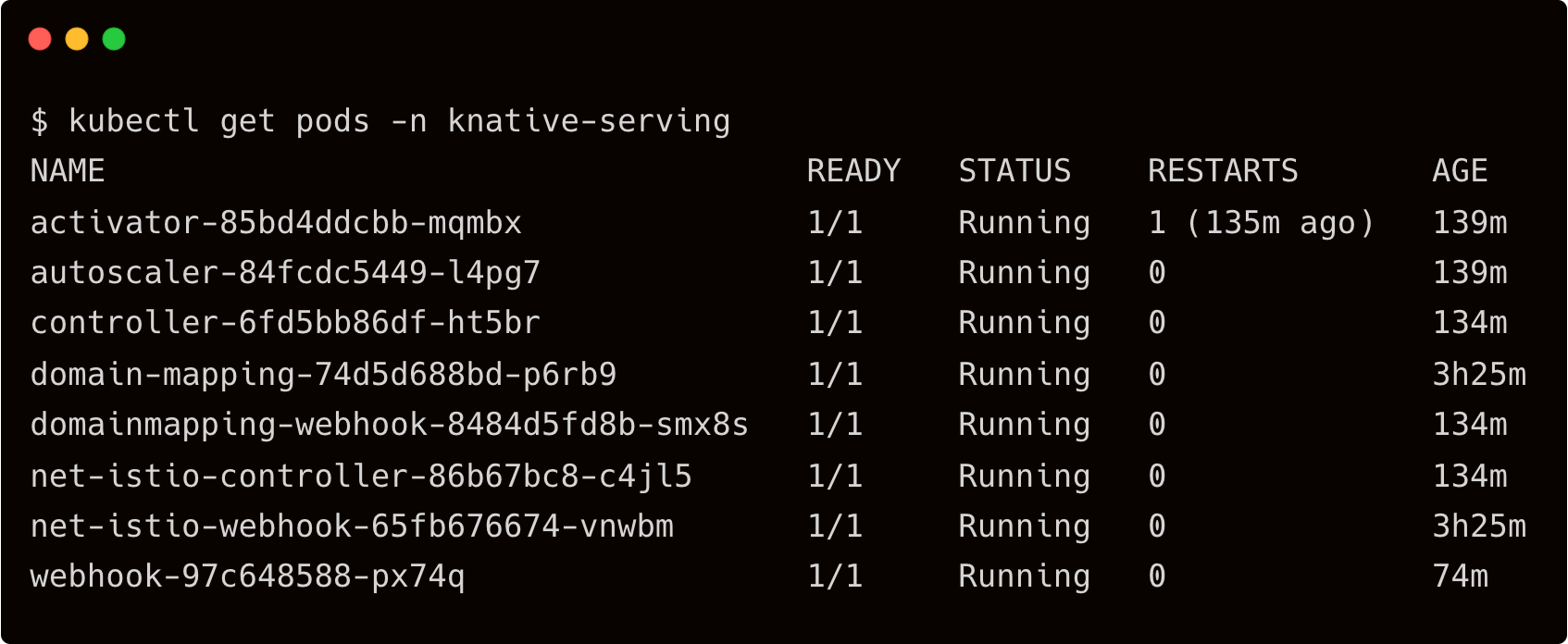
Make sure that Knative Serving is successfully running.
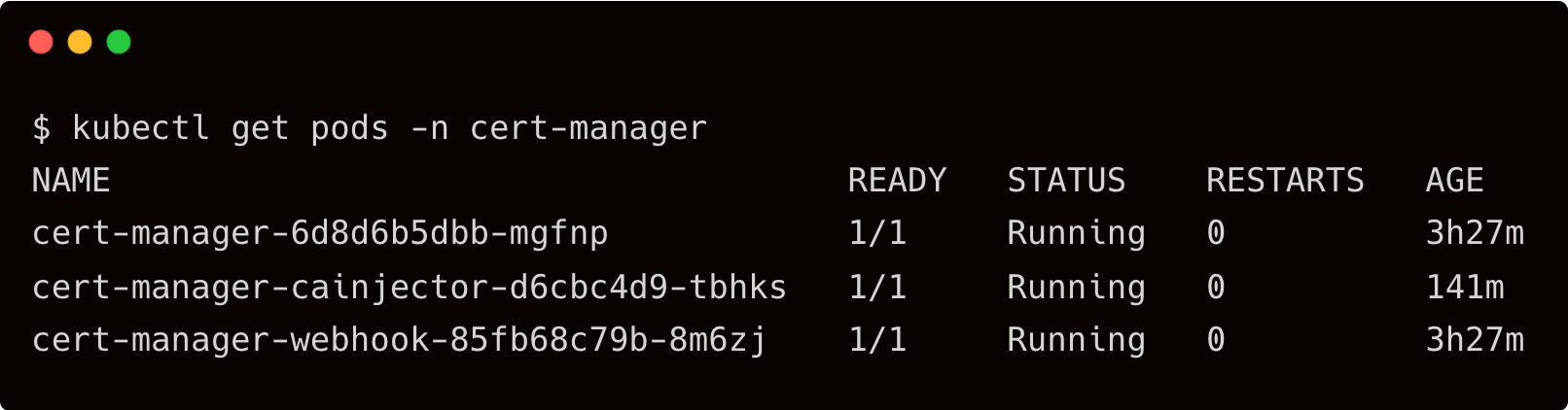
Step 4 – Installing Certificate Manager
Install cert manager with the following command:
kubectl apply -f https://github.com/cert-manager/cert-manager/releases/download/v1.7.1/cert-manager.yaml
1 | kubectl apply –f https://github.com/cert-manager/cert-manager/releases/download/v1.7.1/cert-manager.yaml
Step 5 – Install KServe Model Server
We are now ready to install the KServe model server on the GKE Cluster.
kubectl apply -f https://github.com/kserve/kserve/releases/download/v0.7.0/kserve.yaml
1 | kubectl apply –f https://github.com/kserve/kserve/releases/download/v0.7.0/kserve.yaml
kubectl get pods -n kserve
1 | kubectl get pods –n kserve
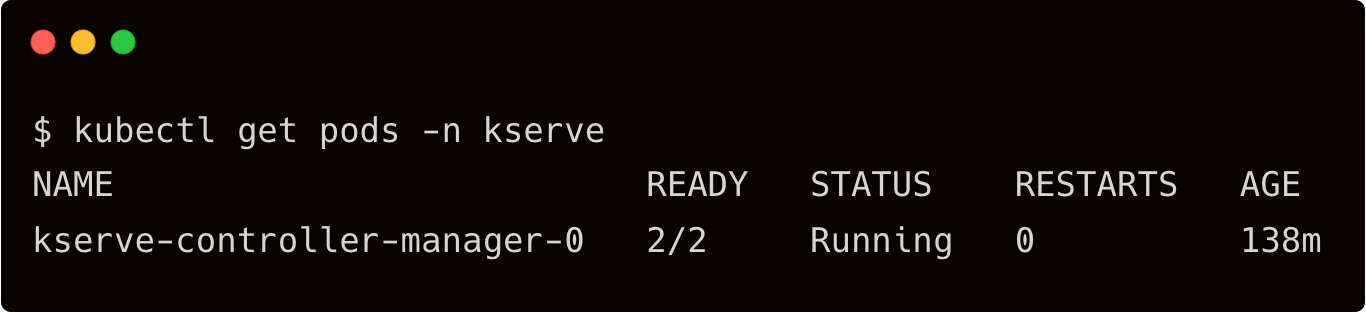
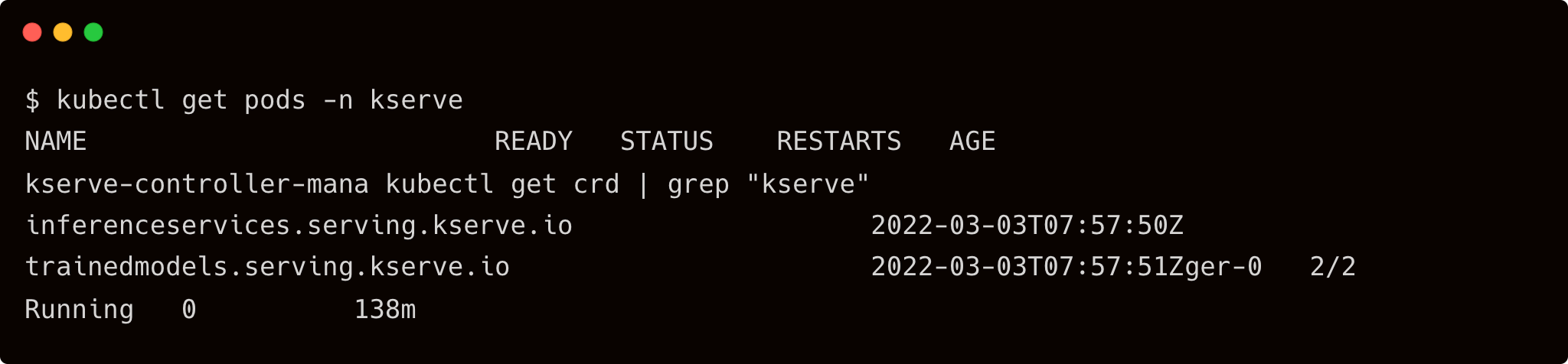
KServe also installs a couple of custom resources. Check them out with the below command:
kubectl get crd | grep “kserve”
1 | kubectl get crd | grep “kserve”
Step 5 – Configuring Google Cloud Storage Bucket and Uploading a TensorFlow Model
KServe can pull models from a Google Cloud Storage (GCS) Bucket to serve them for inference. Let’s create the bucket and upload the model.
Read More:
Update Six of the Best Open Source Data Mining Tools
We will use the model from one of my previous tutorials that trained a CNN model to classify dogs and cats for this scenario. You can download the pre-trained TensorFlow model from here. Unzip the file and run the below commands to create the GCS bucket and upload the model artifacts.
gsutil mb gs://tns-kserve
gsutil iam ch allUsers:objectViewer gs://tns-kserve
gsutil cp -R model/ gs://tns-kserve
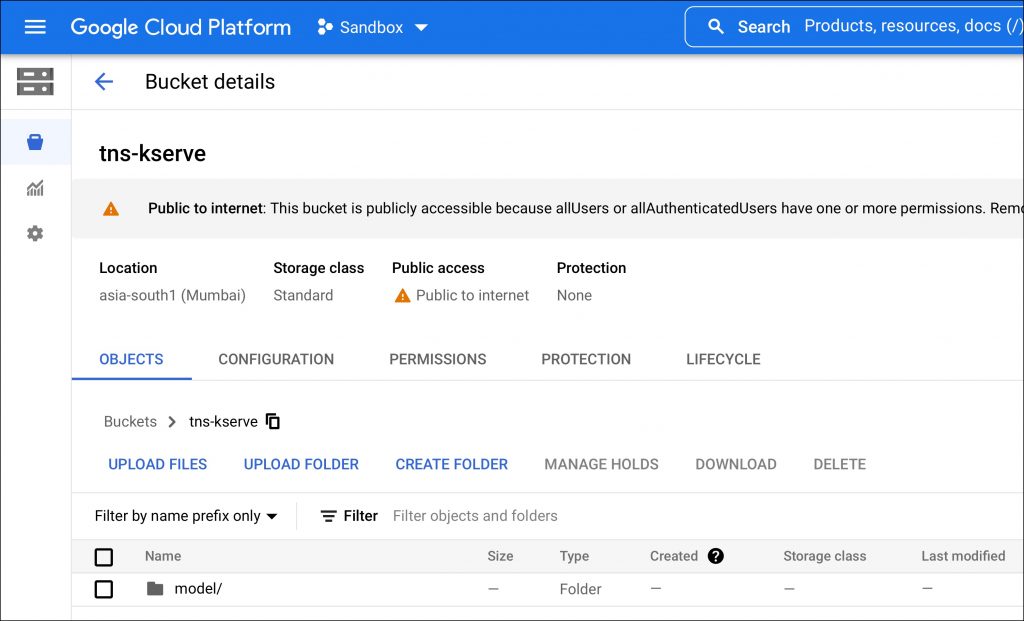
For simplicity, we enabled public access to the bucket. But you may want to secure it and add the service account key as a secret for KServe to access the private bucket.
Step 6 – Creating and Deploying the TensorFlow Inference Service
Let’s go ahead and create an inference service pointing to the model uploaded to the GCS bucket. Notice that we use a node selector to ensure that the service utilizes the GPU for acceleration.
apiVersion: “serving.kserve.io/v1beta1″
kind: “InferenceService”
metadata:
name: “dogs-vs-cats”
spec:
predictor:
tensorflow:
storageUri: “gs://tns-kserve/model”
resources:
limits:
nvidia.com/gpu: 1
requests:
nvidia.com/gpu: 1
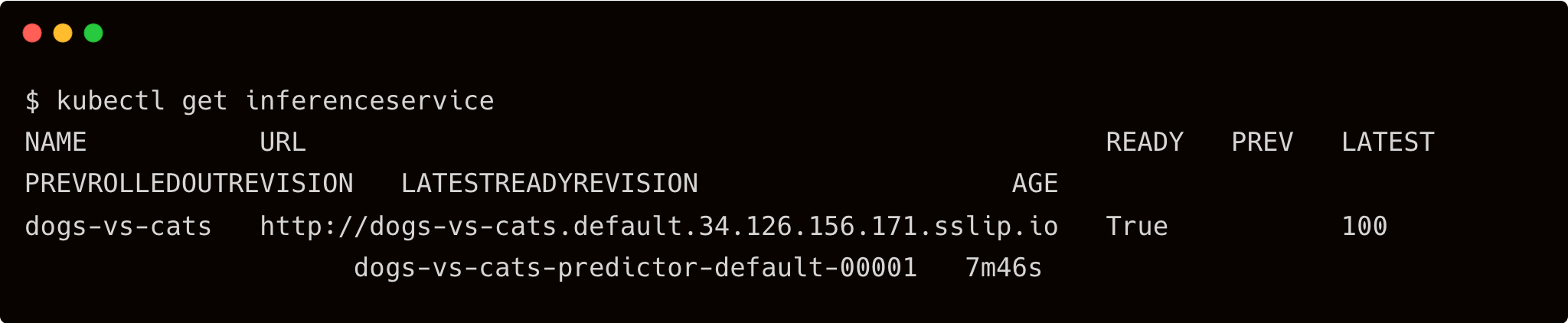
Wait for KServe to generate the endpoint for the inference service.
kubectl get inferenceservice
1 | kubectl get inferenceservice
Step 7 – Performing Inference with KServe and TensorFlow
Install the below Python modules in a virtual environment:
pip install pillow
h5py
tensorflow
requests
numpy
Execute the client code with sample images of dogs and cats to see the inference in action.
import argparse
import json
import numpy as np
import requests
import tensorflow
import PIL
from tensorflow.keras.preprocessing import image
ap = argparse.ArgumentParser()
ap.add_argument(“-i”, “–image”, required=True,
help=”path of the image”)
ap.add_argument(“-u”, “–uri”, required=True,
help=”URI of model server”)
args = vars(ap.parse_args())
image_path = args[‘image’]
uri = args[‘uri’]
img = image.img_to_array(image.load_img(image_path, target_size=(128, 128))) / 255.
payload = {
“instances”: [{‘conv2d_input’: img.tolist()}]
}
r = requests.post(uri+’/v1/models/dogs-vs-cats:predict’, json=payload)
pred = json.loads(r.content.decode(‘utf-8’))
predict=np.asarray(pred[‘predictions’]).argmax(axis=1)[0]
print( “Dog” if predict==1 else “Cat” )
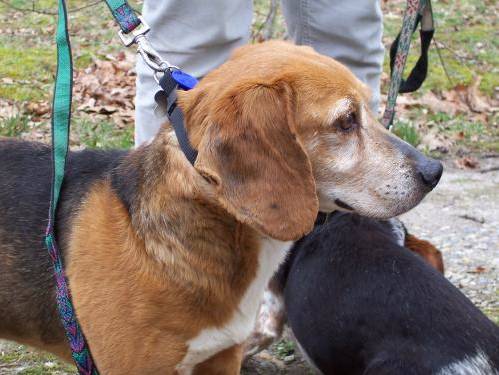
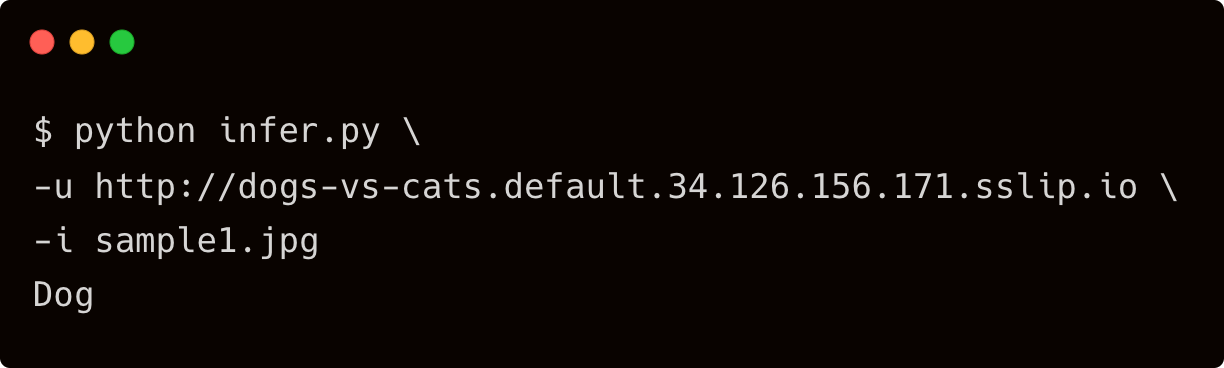
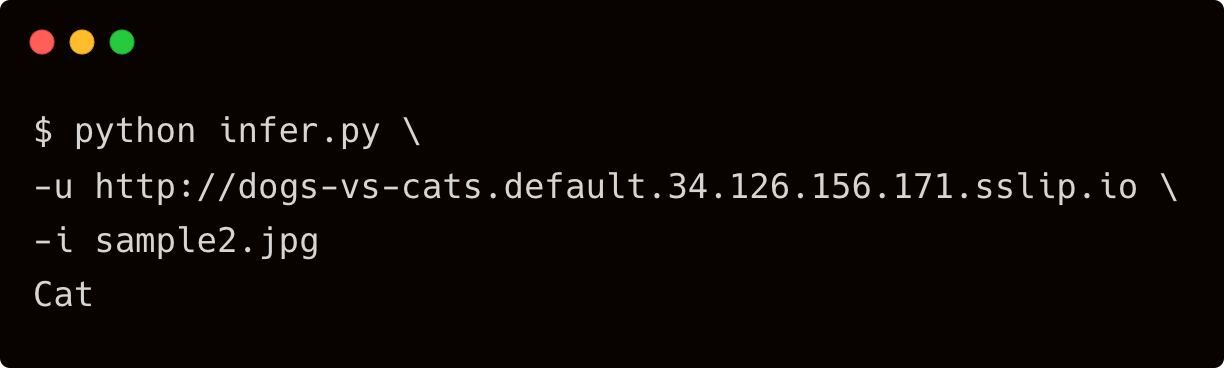
python infer.py
-u http://dogs-vs-cats.default.34.126.156.171.sslip.io
-i sample1.jpg
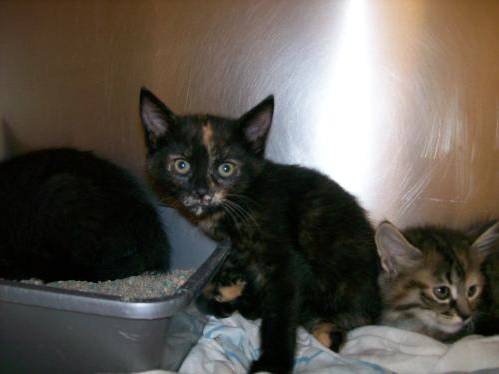
python infer.py
-u http://dogs-vs-cats.default.34.126.156.171.sslip.io
-i sample2.jpg
This concludes the end-to-end tutorial on KServe which covered everything you need to explore the popular model server.
Read More:
Continuous Improvement Metrics for Scaling Engineering Teams – InApps 2022
Feature Image by Rudy and Peter Skitterians from Pixabay.
Related Articles

Best Countries to Outsource Software Development (2026 Guide)
Software development outsourcing means hiring an external engineering team - usually based in another country- to design, build, or maintain software on your behalf, instead of hiring in-house. Most US, UK, and Australian companies do this to access skilled engineers faster and at a lower fully-loaded cost than domestic hiring allows.

How to Hire Remote Developers Without Losing Code Quality: A 2026 Playbook for CTOs
Every CTO who hires remote developers eventually asks the same question: how do I know this is going to work before I've sunk three months and a sprint's worth of technical debt into finding out? Most guides to hiring remote developers answer a different question: which platform to use. They skip the part that actually determines whether the code that comes back is any good. This playbook covers the vetting mechanics, engagement models, and real rate data behind hiring remote engineers who ship production-quality code from week one, not another list of freelance marketplaces.
IT Managed Services vs Break-Fix IT Support: What Growing Startups Need in 2026
Break-fix IT feels free right up until the week something breaks in production and there is no one already watching for it. Here is how growing startups actually decide between break-fix support and managed services in 2026, and why the decision has gotten sharper for anyone shipping a product built quickly with AI tools.